When a product sells out, its page does not stop getting visitors. Search engines keep sending people to it for weeks or months, and unless the page does something useful for them, they leave. Finding which sold-out pages still earn clicks, and fixing those first, is one of the cheapest improvements a store can make. This post shows how to do it with Google Search Console, which is free. Menus and report names in Google's tools change over time, so treat the steps as a guide and check the current interface. We do not quote traffic figures, because yours will differ.
Why Sold-Out Pages Keep Getting Traffic
A product page that ranks well keeps ranking after the product sells out, at least for a while, because search engines do not know about your stock until they recrawl the page. Shoppers searching for that product, or for a brand and model, land there and find a dead end. That is a lost visit you already paid for in effort, through content, links or ads. Our post on whether hiding out-of-stock products hurts your SEO explains why keeping the page live is usually better than removing it.
Step One: Export Your Product Pages From Search Console
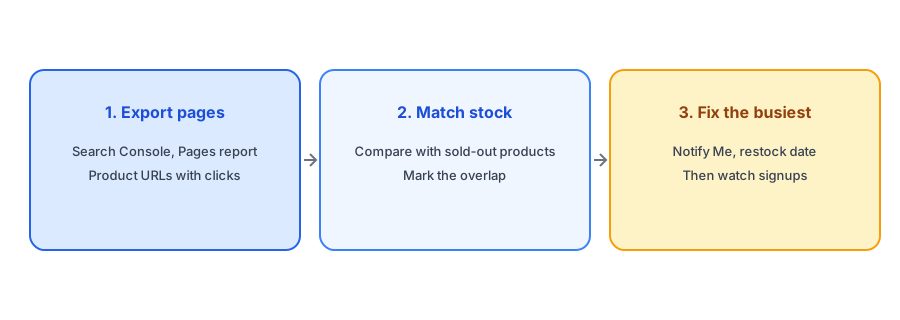
Open Search Console for your store's property and go to the performance report for search results. Choose a date range of the last three months, which smooths out short-term swings. Switch to the pages view and filter for URLs that contain your product path, which on Shopify is usually "/products/". Sort by clicks, then export the table to a spreadsheet. You now have a list of product URLs and how many clicks each earned from Google.
Step Two: Match Them to Sold-Out Products
Next, find which of those products are sold out. In your Shopify admin, use the product or inventory list and look for items with zero available quantity, or export your products with inventory columns and join the two lists on the product handle, which is the last part of the URL. Mark the products that appear in both. Those are your priority pages: sold out, but still earning search traffic. Remember that stock is counted per variant, so a product may be sold out in some variants and available in others.
Turn sold-out search visits into signups. Griffin adds Notify Me to each sold-out variant and is free to start.
Install Griffin on ShopifyStep Three: Make Those Pages Useful
Start with the busiest overlap and make sure each page does three things. It should say clearly that the product is sold out. It should offer a way to be told when it returns, such as a Notify Me form that is visible without scrolling on a phone. And, where you can, it should help shoppers who will not wait, with a close alternative; see our guide to matching alternatives on a sold-out page. If you know when stock is due, show it; our post on showing an estimated restock date explains how.
Keep the Structured Data Honest
While you are on these pages, check that your product markup says the product is out of stock when it is, and that it changes when stock returns. A mismatch between the visible page and the markup can cause problems in search results. Our post on product availability schema explains what to check.
Watch What Happens
After you add Notify Me, track signups on those pages against their sessions, as explained in our guide to calculating your Notify Me signup rate. Repeat the audit every couple of months, since the list of sold-out products changes. If a product will never return, make a deliberate decision about its page rather than leaving it; our guide to handling subscribers when a product is discontinued covers one side of that, and the redirect question is a separate one.
What If the Product Will Not Return?
Not every sold-out page deserves a Notify Me form. If a product is discontinued, a form promises something you cannot deliver, and the better move is to tell visitors plainly and point them to the closest alternative. For high-traffic pages like that, consider whether a redirect to a relevant collection or replacement would serve visitors better than a dead page. Make that decision product by product, and note it in your spreadsheet so you do not revisit it every quarter.
A Practical Checklist
- Export product page clicks from Search Console for the last three months.
- Match them to products with zero available quantity.
- Prioritize the sold-out pages that earn the most clicks.
- Add a visible Notify Me form, a clear sold-out message and, where possible, a restock date.
- Check structured data availability matches the page.
- Repeat the audit every couple of months.
FAQ
Do sold-out product pages still get Google traffic?
Often yes, for weeks or months, because search engines keep the page in results until they recrawl and decide to change it.
How do I find sold-out pages that earn clicks?
Export product page clicks from Search Console, then match them to products with zero available quantity in Shopify.
Should I hide a sold-out page that gets traffic?
Usually not if the product will return. Keep it live with a Notify Me option and a clear message.
How often should I run the audit?
Every couple of months, or after a big sellout, since the list of sold-out products changes.
The Bottom Line
Find the sold-out pages that still earn clicks and give those visitors something to do. Griffin is a Shopify back-in-stock app you can install from the Shopify App Store, free to start.