When a shopper lands on a sold-out product page, the first question in their head is when it will be back. If the page does not answer, many will leave and look elsewhere. Showing a date or window can keep them, and merchants often ask how to show an estimated restock date on the product page. It is more than a technical question. A date you cannot keep does more harm than no date, so how you word it matters as much as how you display it. This post covers both. The admin steps described here are general and based on how Shopify works at the time of writing, so check current Shopify documentation for your theme.
Decide How Sure You Are
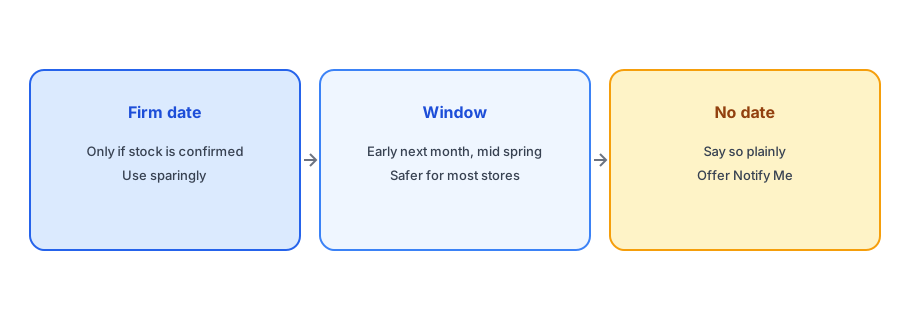
Before you show anything, be honest with yourself about certainty. If stock has shipped and you have a tracking number, a firm date is reasonable. If a supplier has given an estimate, a window is better. If you do not know, say that, and promise to notify the shopper instead. Shoppers forgive a delay announced early far more readily than a missed date they were promised. Our replies for "when will it be back in stock?" include wording for each level of certainty.
Store the Date in a Product Metafield
The tidy way to show a date is to keep it as data rather than typing it into each product description. Shopify lets you define a custom field for products, called a metafield, in your store's settings under custom data. Create a definition such as "Expected restock" with a text or date type, then fill it in on each product that is sold out. In a modern theme you can connect that field to a text block in the theme editor using the dynamic source option, so that the date appears only where the field has a value. Menus and labels change, and some themes need a different approach, so follow current Shopify documentation or ask your theme developer.
Wording That Works
Keep the message short and put it near the Notify Me form. Options by certainty: "Expected back on 20 March" for a firm date; "Expected back in early April" for a window; "We do not have a date yet. Leave your email and we will tell you the moment it is back" for no date. Avoid words that imply guarantees, such as "will definitely" and "guaranteed". If the date slips, update the field and, where possible, let subscribers know. Do not leave an old date on the page after it has passed.
Pair the date with a way to be told. Griffin adds Notify Me to each sold-out variant and is free to start.
Install Griffin on ShopifyKeep the Notify Me Form Visible
A date helps shoppers decide whether to wait, and the form captures those who will. Show both together. A shopper who sees "back in early April" and a one-field email form can commit in seconds, whereas one who sees only a date has to remember to return. Our guide to Notify Me form fields explains why to keep the form to one field, and our post on popup versus inline placement explains where to put it.
Variants and Partial Restocks
Dates often differ by variant. A restock may bring the medium back in two weeks and the large in two months. If your theme shows one product-level date, it may mislead; consider a note that names the variants or keep the message general. Our post on variant-level alerts explains why variant precision matters here too.
When Not to Show a Date
If the product is discontinued, a date is a lie, and showing one will frustrate people. Tell them it is not returning and suggest an alternative; our guide to handling subscribers when a product is discontinued covers it. If supply is genuinely unpredictable, as for some small producers, a plain note about that is better than an invented window.
Keep a Simple Process
A date is only useful if it stays accurate, so give someone ownership. When a purchase order is confirmed or a supplier gives a new estimate, update the metafield the same day. When stock arrives and the product returns, clear the field so an old date never lingers on an in-stock page. A weekly look through your sold-out products, checking each date against the latest news from suppliers, is usually enough for a small store, and it takes only a few minutes.
A Practical Checklist
- Match the wording to how sure you actually are: date, window or no date.
- Store the date in a metafield so it is easy to update.
- Place the message next to the Notify Me form.
- Remove or update dates that have passed.
- Handle variants separately where dates differ.
- Never show a date for a product that will not return.
FAQ
How do I show a restock date on Shopify?
Store it in a product metafield and display it in the theme editor with a dynamic source, or write it into the product page. Steps vary by theme.
Should I show an exact date or a window?
A window is safer unless stock is confirmed. A missed date costs more trust than no date.
What if I do not know when stock will return?
Say so plainly and offer a Notify Me form so the shopper can be told when it is back.
What if the date changes?
Update the page promptly and, where you can, tell subscribers about the delay.
The Bottom Line
A good restock message is honest about timing and gives the shopper a way to be told. Griffin is a Shopify back-in-stock app you can install from the Shopify App Store, free to start.