A product sells out, and for many stores that is the end of the conversation. The page stays up, the add-to-cart button turns grey, and every shopper who arrives leaves. But a sold-out page is one of the most valuable moments in your store, because someone wanted the thing enough to come looking for it. Knowing what to do when a product is out of stock is mostly about turning that moment into something other than a dead end. Here are nine options, ordered roughly from simplest to most involved, with honest notes on when each fits.
1. Keep the Product Page Live
The default instinct is to hide anything sold out. Resist it unless the product is gone for good. A live page keeps its URL, its history and any traffic it has earned, which we explain in our post on whether hiding out-of-stock products hurts SEO. It also gives every other option on this list somewhere to live.
2. Add a Notify Me Option
The most direct fix is a way for shoppers to ask to be told when stock returns. It captures demand you would otherwise lose and gives you a list to email at the right moment. If you have not set one up, start with adding a Notify Me button without code, and see our complete guide to back-in-stock notifications for the whole picture.
3. Say When It Is Coming Back
A shopper who knows the wait is two weeks behaves differently from one who sees only a grey button. If you have an honest idea of timing, put it on the page, as a range you can keep. If you do not know, say so rather than guessing. A missed date costs more trust than no date.
4. Offer Alternatives
Some shoppers will not wait. Show similar products on the sold-out page so they have somewhere to go, and keep the Notify Me option available for those who do want to wait. Offering both gives each kind of shopper a path forward.
5. Take Preorders, If You Can Deliver
If you know when stock is arriving, a preorder lets people pay now and receive it later. It brings in revenue early but commits you to a ship date, and it raises cash-flow and refund questions. Our comparison of back-in-stock alerts and preorders explains when each fits. Be wary of vendor claims that preorders lift revenue by a given percentage; those are marketing figures, not independent results.
6. Allow Backorders Carefully
Shopify's continue selling setting lets people keep buying after stock hits zero. It can work for items you can restock fast, but you oversell if supply slips, and it changes how restock alerts behave; see our post on that setting. If you use it, say plainly when orders will ship.
Catch the shoppers who are willing to wait. Griffin adds Notify Me to sold-out products and emails them when stock returns.
Install Griffin on Shopify7. Rethink Where Sold-Out Items Appear
A collection full of sold-out products looks neglected and frustrates browsing. Many themes and Shopify collection settings can show sold-out items last, so available products get the prime positions. Check what your theme and admin offer, and keep the sold-out items accessible so shoppers can still sign up.
8. Stop Paying to Send Traffic to Sold-Out Products
If you advertise, check that ads and shopping feeds are not sending people to products you cannot sell. Our guide to Google Merchant Center availability covers the feed side. Where you keep an ad live on purpose, make sure the page it lands on has a Notify Me option.
9. Use the Demand to Decide What to Reorder
Every signup is a data point. A sold-out product with a long waitlist is telling you what to reorder first. Our post on tracking customer demand on out-of-stock products shows how to read it, and measuring restock revenue shows how to see what the alerts bring back.
Putting It Together
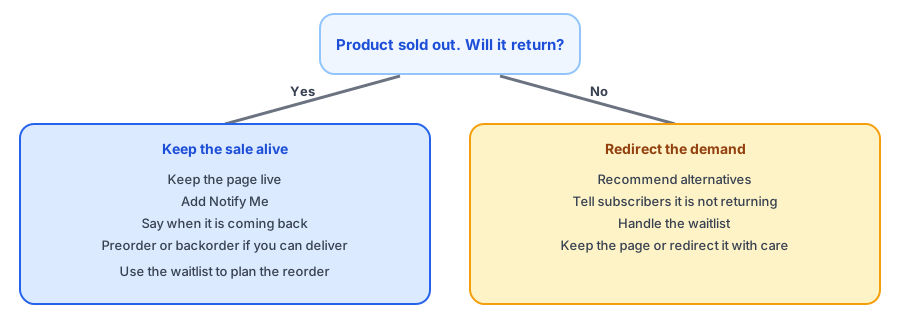
You do not need all nine. A practical minimum for most stores is to keep the page live, add Notify Me, say what you know about timing, and offer alternatives. Add preorders or backorders only for products you can reliably supply, and use the waitlist to plan your next order. When a product is gone for good, tell subscribers and point them elsewhere; see what to do with subscribers when a product is discontinued.
FAQ
Should I hide a product when it sells out?
Usually not. A live sold-out page keeps its search history and gives shoppers a way to stay in touch. Hiding it removes both. Hide only products that will never return.
Is it better to take preorders or to send restock alerts?
It depends on how sure you are of the restock date and whether you want to take payment before you have stock. Preorders commit you to shipping; alerts only ask shoppers to come back. Many stores use each for different products.
Can I keep selling a product that is out of stock?
Yes, with the continue selling setting, but you then oversell if you cannot supply it. Use it only for items you can restock quickly and say when they will ship.
What is the quickest fix for a sold-out product page?
Add a way to be notified when it returns, and make the page clearly say it is sold out. That alone turns most dead ends into a request you can act on.
The Bottom Line
A sold-out product is a request you have not answered yet. Keep the page, capture the demand, be honest about timing, and use what you learn. Griffin is a Shopify back-in-stock app you can install from the Shopify App Store, free to start.