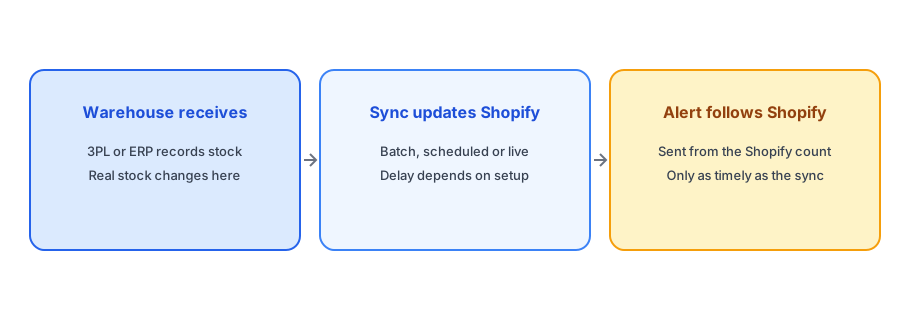
Many growing stores do not count stock themselves. A third-party logistics provider receives and ships the goods, or an ERP or inventory system holds the master record, and those systems push quantities into Shopify. That works well until you add notifications on top. Back-in-stock alerts depend on the inventory number Shopify holds, so a 3PL inventory sync back in stock alerts setup is only as accurate and as timely as the integration feeding it. We do not know how any particular integration behaves on your store, so this post explains the mechanics and gives you a way to check your own, without inventing figures.
Where the Real Stock Lives
With a warehouse or ERP, the real stock changes at the dock: a pallet arrives, someone scans it, and the system records it. Shopify learns about it only when the integration sends an update. Some connections are close to real time, some run every few minutes, and some run once or a few times a day. Some update on a schedule, others on events. The gap between the dock and the Shopify count is the gap your subscribers experience, and you should know how long it is.
Late Alerts and Early Alerts
Sync lag creates two failure modes. The first is a late alert: stock is on the shelf but Shopify still shows zero, so subscribers hear nothing for hours or until the next sync. The second is an early or false alert: Shopify shows stock that has already been allocated or that is not yet available to ship, and subscribers are told something is back when it is not. The second is worse for trust. Our post on why you might be sending false back-in-stock alerts describes the causes, and a mismatch between systems is one of them.
Batch Updates and Sudden Surges
Batch syncs can also change the shape of an alert. If a warehouse sends a large update all at once, many products can change from zero to positive in the same moment, and every subscriber of each of those products may be notified together. That is correct behavior, but it means a lot of email at once and a burst of traffic to your store. If you restock popular items, expect a spike after each sync rather than a smooth flow. Our post on preparing your back-in-stock app for Black Friday and Cyber Monday volume covers how to prepare for this kind of peak.
Pair accurate stock with timely alerts. Griffin notifies subscribers of the variant that returns to stock in Shopify.
Install Griffin on ShopifyHow to Check Your Own Sync
You can measure your lag with a simple test. Choose a product that is sold out and has a small stock arriving, ask the warehouse to record receipt, and note the time. Then watch the Shopify inventory count and note when it changes. The difference is your sync delay. Repeat it a few times at different times of day, since some integrations behave differently overnight or under load. Also check which location the stock lands in if you use several; our post on alerts for multi-location stores explains how location can affect availability.
Reserved Stock, Safety Buffers and Available Quantity
Many warehouse and ERP systems distinguish between on-hand stock and available stock, after reservations and safety buffers. What you send to Shopify matters. If you push on-hand quantity, Shopify may show stock that is already spoken for, and an alert may go out for units you cannot sell. If you push available quantity, the alert will reflect sellable stock. Ask your integration provider which number is sent, and whether a buffer is applied. This is also a good moment to compare what your point-of-sale and online counts show; our guide to why alerts might not match in-store inventory covers that related issue.
Talk to Your Integration Provider
Most of what matters here sits with the team that runs your warehouse integration, not with the alert app. Ask them how often quantities are sent, whether updates are triggered by events or run on a timer, how errors are handled and what happens when an update fails. A failed sync can leave Shopify showing stale numbers for hours without anyone noticing, which would delay or distort alerts. Ask whether they can alert you when a sync fails, and keep a note of the answers so you can explain delays to customers honestly.
A Practical Checklist
- Find out how often your 3PL or ERP updates Shopify, and whether it is scheduled or event-driven.
- Time the lag between a warehouse receipt and the Shopify count changing.
- Confirm whether the integration sends on-hand or available quantity.
- Expect a burst of alerts after large batch updates, and prepare for the traffic.
- Investigate any alert that fired for stock you could not actually ship.
FAQ
Why do my restock alerts go out late with a 3PL?
Because the alert follows the Shopify inventory count, and the warehouse or ERP updates that count on its own schedule. A slow sync means a slow alert.
Can a sync cause false restock alerts?
Yes. If Shopify shows stock that is reserved or not yet shippable, subscribers can be told a product is back when you cannot sell it.
How do I measure my sync delay?
Record a warehouse receipt, then note when the Shopify count changes. Repeat several times at different times of day.
Should my integration send on-hand or available stock?
Usually available stock, after reservations and buffers, so Shopify and your alerts reflect what you can actually sell.
The Bottom Line
If an external system owns your stock, your alerts inherit its timing and accuracy. Know your sync cadence, confirm which quantity is sent and test the lag. Griffin is a Shopify back-in-stock app you can install from the Shopify App Store, free to start.