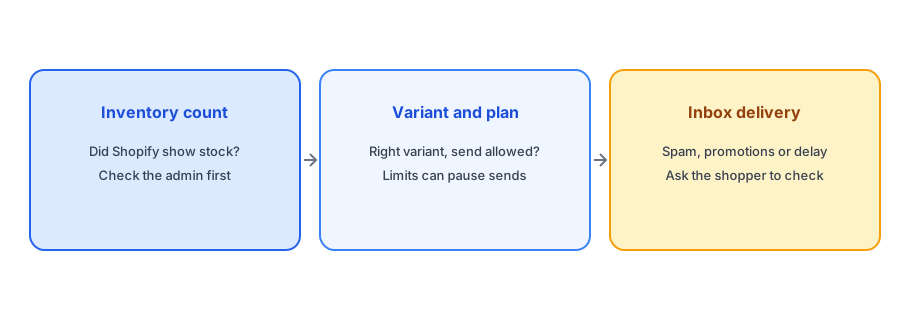
You restocked a product, a subscriber emails to say they were waiting, and the alert has not arrived. Or you got a message saying an alert showed up hours after the product came back. It is natural to suspect the app, but a delayed back-in-stock notification usually has a short list of possible causes, and most are visible without technical knowledge. This post is a checklist, in the order we would check them. We cannot see your store, so treat it as a diagnostic path rather than a diagnosis. The mechanics here are general and apply to any app that reads Shopify inventory.
Check One: Did Shopify Actually Show Stock?
An alert can only follow the inventory number Shopify holds. Open the product in your admin and look at the variant's available quantity. If the quantity is still zero, or was updated later than you thought, there is your delay. This is common when stock is updated by an integration or a warehouse system that runs on a schedule; our post on 3PL and ERP inventory sync explains how to measure that lag. Also check that quantity tracking is on for the variant: if it is off, the count does not change and no restock is detected.
Check Two: Which Location Received the Stock?
If you use more than one location, stock can be added at a location that does not ship online orders or is not enabled for the product, so the sellable total does not change. The admin may show units while the storefront still says sold out. Our guide to alerts for multi-location stores explains how location affects availability.
Check Three: Is It the Same Variant?
Alerts are tied to the variant the shopper chose. A subscriber waiting for the large black version will not be notified when the medium returns. If you restocked a different variant than the one the complaining shopper requested, nothing is wrong. Look at which variant they signed up for and which one actually came back. A mismatch between what a shopper remembers choosing and what they signed up for is a frequent cause of reported missing alerts.
Alerts tied to the exact variant, so subscribers hear about what they asked for. Griffin is free to start.
Install Griffin on ShopifyCheck Four: Plan Limits and Settings
Many apps, including free plans of most alert apps, limit how many alerts can be sent in a billing period. If you have reached it, sends may pause until the period renews or you upgrade. Check your usage in the app. Our post on what a free back-in-stock plan actually limits explains how to see whether an allowance covers you. Also confirm the product is published: some setups behave differently for draft or unpublished products, as covered in our post on alerts about draft products.
Check Five: Did It Reach the Inbox?
Sometimes the alert was sent promptly but arrived in spam, the promotions tab or was delayed by the mailbox provider. Ask the subscriber to check those folders and search for your store name. If several shoppers report missing emails at once, look at your sender setup; our guide to back-in-stock emails going to spam covers SPF and DKIM. Large sends can also be queued, so some recipients may receive the email later than others, even when nothing is wrong.
When to Contact Support
If you have worked through all five and an alert is still missing, gather what support will need: the product and variant, the time you changed the stock, the time the subscriber signed up and the email address involved. With those, a support team can trace the specific send. Our troubleshooting guide for back-in-stock apps that are not working covers wider causes.
Telling Subscribers What Happened
If you find that alerts really were late, tell people. A short note explaining that stock was updated later than expected, and that you are fixing the cause, costs little and keeps trust. Shoppers forgive honest delays far more readily than silence. If the cause was your own inventory process, such as stock counted but not entered, make a small change to the routine so it does not recur, and record the date so you can see whether it has helped.
A Practical Checklist
- Confirm the variant's available quantity in Shopify and the time it changed.
- Check the stock landed at a location that can sell it and quantity tracking is on.
- Compare the variant that restocked with the one the subscriber chose.
- Check plan usage and product status.
- Ask the subscriber to check spam and promotions folders.
- Collect timestamps and variant details before contacting support.
FAQ
Why has my restock alert not been sent?
The most common reasons are that Shopify has not yet shown the stock, the restocked variant is different from the one subscribed to, or a plan limit has been reached.
Can an alert arrive late even when stock was updated on time?
Yes. Large sends can be queued, and mailbox providers can delay or filter messages.
Does quantity tracking matter?
Yes. If tracking is off for a variant, its count does not change and a restock cannot be detected.
What should I send to support?
The product and variant, when stock changed, when the subscriber signed up and the email address involved.
The Bottom Line
Work the path in order: inventory count, location, variant, limits and inbox. Most delays are explained by the first three. Griffin is a Shopify back-in-stock app you can install from the Shopify App Store, free to start.