Search the Shopify Community forums for "back in stock app not working" and you'll find the same handful of threads over and over: a merchant installed a restock notification app, it worked fine for a while, and then one day the "Notify Me" button was just gone, or customers stopped getting alerts even though inventory was clearly back. Support gets a ticket, the merchant loses confidence in the app, and the actual fix usually takes two minutes once you know where to look.
Most of the time, when a back-in-stock app isn't working on Shopify, the problem isn't a bug in the app itself. It's a setup detail that got flipped during a theme change or a product edit. Here's a rundown of the usual suspects and how to check each one before you assume the app is broken.
The Notify Me Button Isn't Showing Up At All
When the notify me button not showing is the whole problem, it's almost always one of three things. First, the app's embed can get switched off without anyone noticing, especially after a theme update resets app embed settings back to their defaults. Second, the product itself might not actually be "out of stock" from Shopify's perspective. If a variant has continue-selling-when-out-of-stock turned on, Shopify never marks it as sold out, so the widget has no reason to appear. Third, custom CSS or a heavily modified theme can accidentally hide the block, especially if a developer added rules targeting a generic class name that happens to also match the app's markup.
The fastest way to isolate which of these it is: open the product page in an incognito window, check the product's inventory settings in Shopify admin, and confirm the app embed toggle in the Theme Editor. If the embed is on and the product is genuinely out of stock but the button still won't show, a CSS conflict is the most likely remaining cause.
Shopify Theme App Block Issues After a Theme Update
Shopify theme app block issues are a common source of "it was working yesterday" tickets. Updating a theme, switching to a new theme, or restoring an older theme version can all silently drop app blocks that were added to specific templates. Because the app is still installed and still active in your admin, nothing looks wrong at a glance, but the block that renders the widget on the product page is simply missing from that particular template.
Another version of this: edits get made on a duplicate or draft theme instead of the one that's actually published. The preview looks perfect, but nothing changes on the live storefront because the published theme was never touched. Before assuming the app itself regressed, check which theme is marked "Published" in your Themes list and confirm you're editing that one.
A Quick Back-in-Stock Widget Troubleshooting Checklist
When something breaks and you're not sure where to start, work through this back in stock widget troubleshooting checklist in order. Each step rules out one of the causes above before you move to the next.
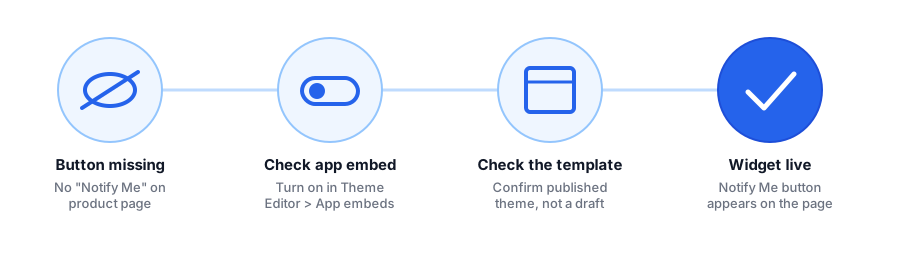
- Confirm the app embed is enabled on the currently published theme, not a draft or duplicate.
- Check the product's inventory settings. Tracking should be on, and continue-selling-when-out-of-stock should be off for the variant you're testing.
- Clear cache or test in incognito so you're not looking at a stale cached version of the page.
- Test the subscribe flow end to end on the exact variant, since some apps track subscriptions per variant rather than per product.
- Check spam and promotions folders for the test notification before concluding the email never sent.
Want a widget that's built to stay visible through theme changes, with no manual code edits to babysit? See how Griffin handles it.
Install Griffin on ShopifyWhen It's Not the App, It's the Setup
Once the widget itself is confirmed working, a second category of issues shows up after a real restock: the button worked, a customer subscribed, but no email ever arrived. This is rarely the app failing outright. More often it's an inventory sync delay, where Shopify's inventory update takes a moment to propagate, or the restock happened at a different Shopify location than the one the app is watching for multi-location stores. Email deliverability is the other common culprit. Automated restock emails can land in spam just like any other transactional email, particularly for stores that haven't set up SPF or DKIM records for their sending domain.
If a merchant reports "the app isn't sending emails," it's worth checking the store's email deliverability settings before touching the app configuration at all. A widget that's technically working correctly still looks broken to a customer if the email lands in a folder they never check.
FAQ
Why is my back-in-stock app not working on Shopify?
The most common causes are the app embed being turned off in the Theme Editor, edits landing on a draft theme instead of the published one, or the product still being set to allow purchases when out of stock, which hides the widget entirely.
Why isn't the Notify Me button showing on my product page?
Check that the app embed is enabled under Theme Editor > App embeds, that you are editing the live published theme, and that the product's inventory tracking is on with continue-selling turned off so Shopify actually marks it out of stock.
I fixed the widget, but customers say they never got the alert email. What's wrong?
This is usually inventory sync delay or deliverability, not the widget itself. Confirm the restock was saved on the correct variant and location, then check spam folders, since restock alerts can get filtered like any other automated email.
Do I need to redo my back-in-stock app setup after a theme update?
Sometimes, yes. Updating or switching themes can reset app embeds and remove app blocks from product templates, so it is worth re-checking the embed and template after any theme change, not just after installing the app the first time.
The Bottom Line
A back-in-stock widget that suddenly stops working is almost never a sign the app is unreliable. It's usually a theme embed that got reset, a draft theme that isn't actually published, or a product setting that quietly changed what "out of stock" means for that variant. Work through the checklist above before opening a support ticket, and you'll likely find the fix takes less time than writing up the bug report would have.
If you're evaluating alternatives because troubleshooting keeps eating your time, Griffin is built to stay visible through theme changes with a lightweight, app-block-based install and no manual code edits. It's also worth reading how back-in-stock alerts reduce cart abandonment if you're deciding whether the feature is worth the setup effort in the first place. Install Griffin on the Shopify App Store to try a setup built for reliability.