Following every step in a back-in-stock app's setup guide and still not seeing the button is one of the more frustrating troubleshooting situations a merchant can run into, mostly because the obvious causes, like the app not being installed or the embed not being enabled, are already ruled out. When this happens specifically on a custom-coded or heavily modified theme, there's a good chance the real issue is a theme compatibility gap, and it has a specific, well-documented fix.
Why the Button Doesn't Always Show Up Automatically
Most back-in-stock apps place their button one of two ways. On a standard Online Store 2.0 theme, the app can often use the theme's own section and block structure, letting a merchant add the widget through the Theme Editor like any other content block. On themes with non-standard or hand-rolled product page markup, though, apps commonly fall back to a script that scans the page for the Add to Cart button and inserts the Notify Me button right next to it, using a CSS class name the app expects to find, like .product-form__buttons or .add-to-cart.
That fallback works well on themes that use common, conventional class names. It breaks silently on themes that don't. A custom-built or extensively modified theme might name that same button .buy-box__cta or something else entirely unique to that theme's codebase. The app's script looks for a class name that simply doesn't exist on your product page, finds nothing to attach to, and the button never appears, even though the app embed shows as enabled.
How to Find Your Theme's Actual Selector
This is where the custom theme fix for the Notify Me button comes in, and it doesn't require a developer. Every browser has a built-in way to inspect a page's HTML:
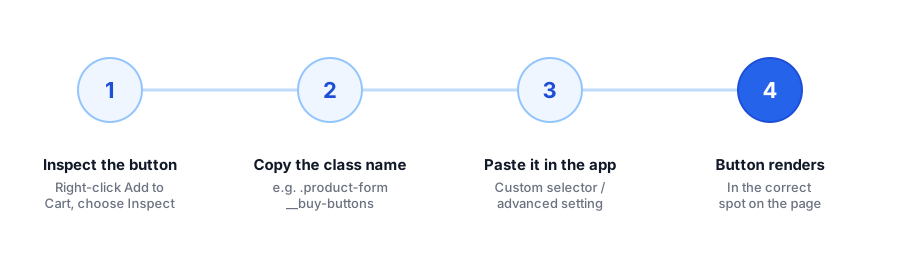
- Open a sold-out product page on your storefront, not the Theme Editor preview.
- Right-click the Add to Cart button (or where it would be, if it's disabled) and choose Inspect.
- Look at the highlighted HTML in the developer tools panel that opens. The button element, or the container wrapping it, will show one or more class names.
- Copy the most specific class name, usually the one that looks unique to that button rather than a generic layout class used all over the page.
Where a CSS Selector Back-in-Stock Setup Actually Gets Used
Once you have that class name, most back-in-stock apps that support this fallback method offer a custom selector or advanced placement field somewhere in their settings, exactly for this scenario. Pasting the class name there tells the app's script precisely which element to target, instead of guessing based on defaults that don't match your theme. If you're not sure whether the app you're using has this option, check its help docs or contact support directly. This is a common enough issue with custom themes that most established back-in-stock apps, Griffin included, have a documented path for it rather than leaving custom-theme merchants stuck.
Running into this on your own custom theme? Griffin's support team can help you find the right selector.
Install Griffin on ShopifyWhen It's Worth Asking for Help Instead
A single, consistent selector across all your product pages is the easy case. It gets more complicated if your theme renders the Add to Cart area differently across different product templates, for example, a separate layout for products with variants versus simple products, since each layout might need its own selector. In that situation, or if you're not comfortable using browser developer tools at all, it's faster to send a screenshot of the Inspect panel to your app's support team than to guess. Back in stock theme compatibility issues are common enough that most support teams can resolve them quickly once they can see the actual markup.
FAQ
Why doesn't the Notify Me button show up after I enable the app embed?
On many custom or heavily modified themes, the app injects the button by looking for a specific CSS class near the Add to Cart button. If your theme uses different class names than the app expects, the script has nowhere to put the button, even though the embed is enabled.
What is a CSS selector, in plain terms?
It's the specific class or ID name in your theme's HTML that identifies an element, like the Add to Cart button or its wrapping container. Giving the app that exact name tells its script precisely where on the page to insert the Notify Me button.
How do I find my theme's CSS selector for the Add to Cart button?
Open a product page, right-click the Add to Cart button, and choose Inspect. The highlighted HTML will show one or more class names on that element or its parent container. Copy the most specific one.
Does every back-in-stock app need this fix on custom themes?
Not every theme needs it, only ones with non-standard or heavily customized product page markup. Most default and lightly customized Online Store 2.0 themes work without any manual selector.
The Bottom Line
A missing Notify Me button on a custom theme almost never means the app is broken, it usually means the app's script is looking for a class name your theme doesn't use. Finding your theme's actual selector with the browser's Inspect tool and supplying it to the app closes that gap in a few minutes.
If you're still working through basic setup, our guide on adding a back-in-stock Notify Me button covers the standard, no-code path, and our troubleshooting guide covers other common failure causes. Griffin supports custom-theme placement help through direct support. Install Griffin on the Shopify App Store to get started.