You update your theme, or switch to a new one, and a week later a customer asks why the Notify Me button is gone. Nothing in your app settings changed, and the app is still installed. The cause is usually in the theme, not the app. A back-in-stock button breaking after a theme update is common enough to have a standard checklist, and it takes ten minutes to work through. The steps here follow how Shopify's theme editor works at the time of writing. Menus move, so check current Shopify documentation if your screen differs.
Why a Theme Change Can Remove the Button
Apps that add features to your storefront through the theme editor are attached to a specific theme. When you publish a different theme, or install an updated version as a new theme, the app's blocks and embeds are not automatically carried across. The app is still installed on your store, but the new theme does not know about it. Customizations you made in the old theme, such as moving a block or editing the product template, are also not applied to the new one. The result is a product page with no Notify Me button, and nothing in your admin shouts that it is missing.
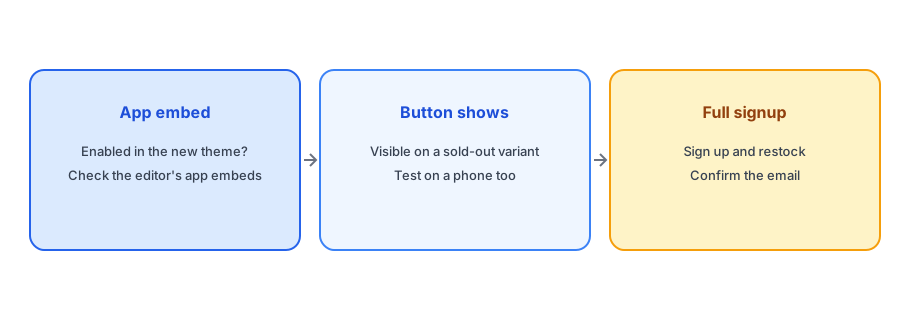
Check One: Is the App Embed Enabled?
Open the theme editor for the live theme and find the app embeds section. Look for your back-in-stock app in the list and make sure it is switched on. Embeds are set per theme, so a new theme usually starts with them off. If the app has a settings page with an enable or setup step, check it as well, since some apps need to be re-linked to the new theme. This one step fixes a large share of missing buttons.
Check Two: Does the Button Appear on a Sold-Out Product?
Visit a sold-out product in a private browser window. If the button is missing, the cause may be the product template, since some themes need the app block added to the product page layout. Open the product template in the theme editor and look for the app's block, or its settings on the product section. Some themes also use their own sold-out logic that hides the buy area completely; our guide to the button not showing on custom themes explains the selector problem behind that.
Check Three: Variants and Mobile
Switch between variants on the test product, including ones that are in stock and ones that are sold out. The button should appear only when the selected variant is unavailable, and it should update as you switch; see why the button can disappear on a variant switch. Then repeat on a phone. Layout changes in a new theme can push the form below the fold or hide it behind another element.
Adds Notify Me without theme code, so a theme change is a re-enable, not a rebuild. Griffin is free to start.
Install Griffin on ShopifyCheck Four: Run the Full Test
Do not stop at seeing the button. Sign up with a test email, restock the variant in your admin and confirm that the email arrives with the right link. Our ten-minute test plan walks through it. This catches problems that look fine on the page but fail behind it.
Prevent It Next Time
Make the check part of your theme change routine. Before publishing a new theme, preview it with the app embed enabled and test a sold-out product in the preview. Keep the old theme unpublished for a while as a fallback. Write down which apps need re-enabling so you do not rediscover the list each time. And if customers have been signing up, your existing subscribers are unaffected, since their requests live with the app, not the theme; only the sign-up button was missing. Our post on back-in-stock apps not working covers other causes if the button is back but alerts are not.
When to Call for Help
If you have enabled the embed, checked the template and the button still does not appear, stop poking at theme files. Gather the name of the theme, the product page URL and what you have already tried, then contact the app's support and, if needed, your theme's developer. Screenshots of the theme editor's app embeds section help a lot. Customized themes are the usual culprit, and a developer can usually fix a template in minutes once they can see it.
A Practical Checklist
- Enable the app embed in the new theme and check any app setup page.
- Add the app block to the product template if your theme needs it.
- Test a sold-out product, a variant switch and a phone.
- Run a full signup and restock test.
- Preview new themes before publishing and keep the old one as a fallback.
FAQ
Why did my Notify Me button disappear after a theme change?
App embeds and blocks are set per theme, so a new theme usually starts without them. Re-enable the embed and check the product template.
Do I lose my subscribers if I change theme?
No. Subscriber requests belong to the app, not the theme. Only the sign-up button is affected.
Where do I enable the app embed?
In the theme editor, in the app embeds section. Exact menus can change, so check Shopify's current documentation.
How do I confirm everything works?
Check the button on a sold-out variant on desktop and phone, then run a signup and restock test.
The Bottom Line
After any theme change, re-enable the embed, check the button and run a test. Griffin is a Shopify back-in-stock app you can install from the Shopify App Store, free to start.