Open one of your busiest collections. If half the products on the first screen are sold out, shoppers see a store that looks neglected, and the products they can actually buy sit below the fold. Moving sold-out products to the end is a common request, and the surprise is that Shopify has no built-in setting that does it automatically. There are four ways to get there, each with a different trade-off. If you want to know how to move out of stock products to end of collection on Shopify, start with the chooser below, then read what each method costs you.
Which Method Fits Your Store?
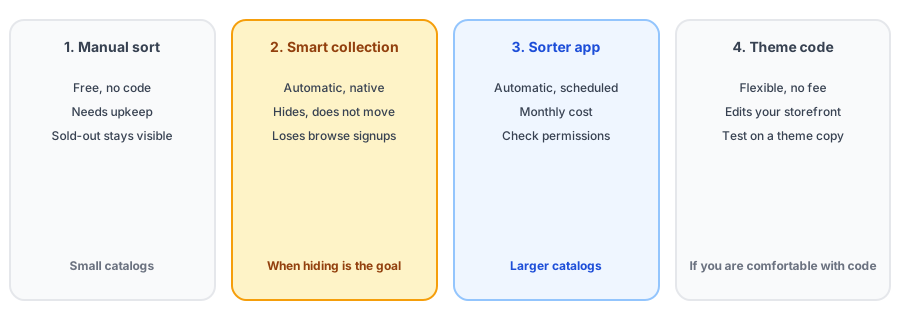
The Four Methods
1. Sort manually
Set the collection's sort order to manual and drag sold-out products to the end. It is free and needs no code. The drawback is upkeep: nothing updates when stock changes, so you must move products back after a restock. It suits small collections that change slowly.
2. Use a smart collection condition
Make the collection automated and add a condition that inventory stock is greater than zero. Sold-out products drop out and come back when restocked. This is automatic and native, but it hides the products instead of moving them, which means shoppers browsing that collection cannot find them and cannot join the waitlist from there.
3. Install a sorter app
Several apps move sold-out products to the bottom of collections on a schedule. It is the easiest automatic route for larger catalogs. Check the price, the permissions it asks for, and how often it re-sorts before you install.
4. Change the theme code
Developers can use the available attribute in Liquid to list available products first and sold-out ones after. It is flexible and has no monthly fee, but it changes your storefront code, so duplicate your theme, test it, and remember that theme updates can overwrite your changes.
Whichever method you choose, keep sold-out products reachable. Griffin adds Notify Me to sold-out variants so browsers can still sign up.
Install Griffin on ShopifyHiding Versus Sorting Last
The choice that matters most is whether sold-out products should disappear or move down. Sorting them last keeps them in the collection, which keeps them findable and keeps the signup within reach. Hiding makes the collection look full but removes that path, and a shopper who remembers a product will not find it. Sorting last is usually the better default for products that will return. Neither changes whether the product page stays live, which is the more important SEO question; see whether hiding out-of-stock products hurts SEO.
Make Sure the Sold-Out Pages Still Work
Once sold-out products sit at the bottom, shoppers who reach them should find a page that helps. Check yours with the sold-out page checklist and see nine things to do when a product is out of stock for the options beyond sorting. If you advertise collections, read Google Merchant Center availability too. Griffin does not sort collections; it handles the alert for shoppers who find a sold-out product.
This guide draws on Shopify community discussions and vendor pages, since we found no official setting for it. Shopify changes its admin from time to time, so check your collection's sort menu before relying on any of this.
Check Your Work After You Change It
Whichever route you pick, verify it on the live store. Open the collection on a phone and on a desktop, confirm that the products you can sell appear first, and scroll to the bottom to make sure sold-out items are where you expect, or gone if you chose to hide them. Restock a test product and confirm it moves back up. If you use pagination, remember that sorting only helps when the order carries across pages. Then put a reminder in your calendar to look again after your next busy period, because catalogs drift, new products arrive in the wrong position, and a method that worked for fifty products can strain at five hundred.
FAQ
Does Shopify have a setting to sort sold-out products last?
Our research found no built-in automatic setting, and sources agree the native options are manual sorting and a smart collection condition. Check your collection's sort menu directly, since Shopify changes things over time.
Is it bad to hide sold-out products from collections?
It depends. Hiding them makes the collection look fuller, but shoppers cannot find those products there, and you lose the chance to capture signups from collection browsers. Sorting them last keeps them reachable.
Will sorting sold-out products last hurt SEO?
Sorting only changes the order within a collection. The product pages stay live, which is generally good for SEO. Removing pages or redirecting them is a different matter.
What happens when a product restocks?
With a smart-collection condition or an automated sorter, it returns on its own. With manual sorting, you have to move it back yourself, which is why manual suits only small, slow-changing catalogs.
The Bottom Line
Sold-out products should not crowd out the ones people can buy, and they should not vanish either. Pick the method that fits your catalog, prefer sorting last to hiding, and make sure the pages at the bottom still capture interest. Griffin is a Shopify back-in-stock app you can install from the Shopify App Store, free to start.