Most problems with restock alerts are found by customers, usually at the worst moment: a big restock, a launch, a busy weekend. You can find nearly all of them yourself in about ten minutes. This post is a test script. It walks the full path a real shopper takes, from a sold-out product page to a restock email, and tells you what to look at in each step. If you want to test back-in-stock notifications properly, do it end to end rather than checking the settings screens, because the settings can look fine while the experience is broken.
Before You Start: Set Up a Test Product
Use a product that is not in public view, such as a draft or a hidden item, or a low-priority real product at zero stock, so that you do not disturb real shoppers. Set one variant to zero inventory. If you can, give the test product two variants, so you can check that only the right one triggers. Make sure Track quantity is on, as explained in our post on why restock alerts need it. Have a mailbox you can read, and a phone nearby.
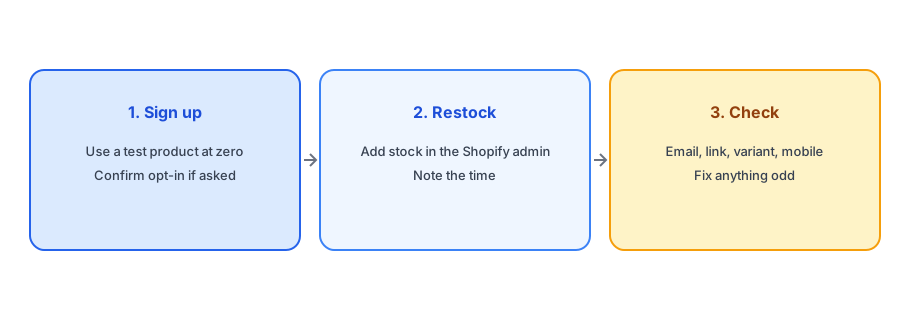
Step One: Sign Up as a Shopper
Visit the test product page in a private browser window, so you see what a visitor sees. Check that the Notify Me option appears, that it is easy to find without scrolling on a phone and that switching variants updates it correctly; our post on why the button can disappear on a variant switch covers a common failure. Enter your test email and submit. If the app uses double opt-in, as Griffin does, a confirmation email should arrive: open it and confirm. Note how long it took and whether it looks right and arrives in the inbox rather than spam.
Step Two: Restock the Product
In the Shopify admin, add stock to the variant you signed up for. Note the exact time. If your inventory normally arrives through a warehouse system or integration, test that path too, since it may update on a delay; our guide to 3PL and ERP inventory sync explains why. A manual change in the admin is a good first test, and a real-world receipt is a better second one.
Step Three: Check the Email
Wait for the alert and look at it as a shopper would. Did it arrive, and how long after the stock change? Does it name the right product and variant? Does the link go to the right variant, and can you add it to the cart and reach checkout? Is the sender name sensible, the subject clear and the unsubscribe option visible? Open it on a phone as well as a desktop. If something looks off, our guide to wrong product images in restock emails and emails going to spam may help.
Test it with a real signup on your own store. Griffin is free to start, and a test uses only one notification.
Install Griffin on ShopifyStep Four: Test the Wrong Variant
If your test product has two variants, sign up for one and restock the other. You should not receive an email. This confirms that alerts are tied to the variant the shopper chose rather than to the whole product. A variant-aware app such as Griffin should behave this way, but verify it on your own store.
Step Five: Check Your Usage and Settings
Look at your plan allowance and confirm the test counted as you expected. Note the free plan allowance so that testing does not use more than a few notifications. Also check that your sender settings are in place; if emails are landing in spam, fix the sending domain before real shoppers are affected.
When to Run the Test Again
Run the full test after any theme change, theme update, new app that touches product pages or change to your inventory setup. Our post on back-in-stock apps that are not working lists the usual causes if the test fails. Keep a short record of each test with the date and result, so you can tell when something changed.
A Practical Checklist
- Use a test product with one variant at zero stock, ideally two variants.
- Sign up in a private window and confirm the opt-in email if asked.
- Restock in the admin and note the time.
- Check the email's timing, content, link and sender on a phone and desktop.
- Restock the other variant to confirm no email arrives.
- Repeat after theme, app or inventory changes.
FAQ
How do I test a back-in-stock alert on Shopify?
Sign up on a sold-out test product, add stock in the admin, then check the email, link and variant on a phone and desktop.
How long should the test alert take?
It depends on your inventory update and email delivery. Note the delay and compare it with what you expect for a real restock.
Does testing use my notification allowance?
Yes, a test email counts as a notification, so keep tests small.
When should I test again?
After any theme change, new app on product pages or change to how inventory is updated.
The Bottom Line
Ten minutes of testing beats a day of apologies. Walk the path as a shopper, check the details and repeat after changes. Griffin is a Shopify back-in-stock app you can install from the Shopify App Store, free to start.