Every store with sizes or colors eventually asks the same question: when one option sells out, should it disappear from the picker or stay visible? Community threads show merchants asking how to hide sold-out variants in specific themes and swatch apps, and the technical answers vary. The strategic question comes first, and it deserves more thought than it usually gets. Hiding sold-out variants can make the page look tidy, but it also removes the evidence that you ever stocked that option, along with the chance to capture a shopper who wanted it. This post sets out the trade-offs. We do not quote conversion figures, because we do not have reliable ones.
The Case for Hiding
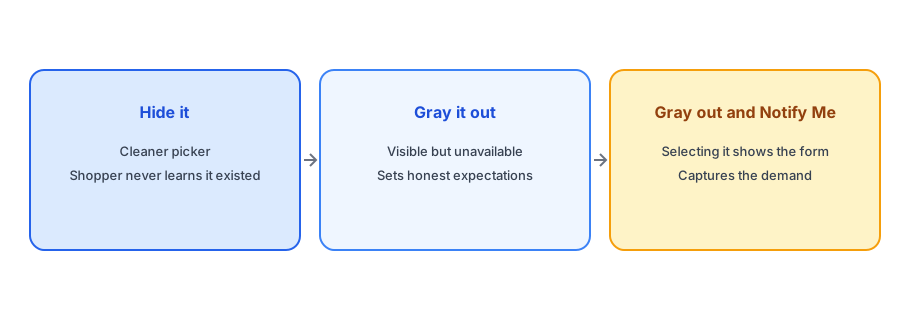
Hiding has real advantages. The picker shows only what can be bought, so shoppers cannot select something unavailable. On products with many options, such as a dozen colors, fewer choices can look cleaner and reduce clutter, and a shopper never has to read an error. For very large catalogs where many variants are permanently gone, hiding retired options can keep a picker usable. If a variant will never return, hiding or deleting it is reasonable; see our post on deleting variants without losing your waitlists.
The Case Against Hiding
The costs are easy to miss because they are invisible. A shopper looking for the medium in navy lands on a page where navy is not offered, and they conclude you do not sell it. They leave without ever learning it is temporarily gone, and you never learn that they came. Hiding also loses demand data: a variant that shoppers cannot select cannot attract Notify Me requests, so you cannot see which sold-out options people want most. And for products that restock regularly, a variant that vanishes and reappears looks inconsistent. Our guide to tracking customer demand for out-of-stock products explains why that signal matters.
The Middle Path: Gray Out and Explain
Most modern themes already show a sold-out option in a muted style, often with a strike-through. That is a good default: the option is visible, it is clearly unavailable and the shopper understands why. The next step is to make selecting it useful. When a shopper clicks a grayed-out option, the buy area should change to a Notify Me form for that variant. Griffin works this way: it ties each signup to the variant chosen and notifies only that variant's subscribers when it returns. The picker stays honest, and the dead end becomes a signup.
Keep sold-out options visible and useful. Griffin adds a variant-specific Notify Me and is free to start.
Install Griffin on ShopifyHow to Decide for Each Product
Use a simple test. If the variant will return, gray it out and offer Notify Me. If it will never return, remove it or hide it, and tell any subscribers. If you cannot tell, leave it visible and say so honestly. For products with a few options, visibility is almost always better. For products with long lists of colors where many are permanent gaps, consider a hybrid: hide retired options and keep recurring ones visible. Whatever you choose, apply it consistently so shoppers learn what the picker means.
Themes and Swatch Apps
How you do this depends on your theme and any swatch or variant apps. Some themes have a setting to show or hide unavailable options, and swatch apps often have their own option for out-of-stock swatches. Settings and class names differ between themes, so check your theme's documentation and test on a duplicate theme. After any change, switch between variants and confirm the form follows the selection; our post on why the button can disappear on a variant switch covers a common failure, and the one on buttons that show only when every variant is sold out explains a related behavior.
Accessibility and Mobile
Whatever you show, make the sold-out state clear without relying on color alone. A strike-through, a label or text such as "Sold out" helps shoppers who cannot distinguish colors. On a phone, make sure unavailable options are still tappable, so the shopper can reach the Notify Me form. Our accessibility checklist covers contrast and focus.
A Practical Checklist
- Gray out and offer Notify Me for variants that will return.
- Hide or delete variants that are gone for good, and tell subscribers.
- Make selecting a sold-out option show the form for that variant.
- Check your theme or swatch app settings on a duplicate theme.
- Do not rely on color alone to show unavailability.
- Use per-variant signup counts to decide what to reorder.
FAQ
Should I hide sold-out variants on Shopify?
Usually not if they will return. Gray them out and offer Notify Me. Hide only variants that are gone for good.
What do shoppers think when a variant is missing?
Often that you do not sell it. They leave without learning it is temporarily unavailable.
Does hiding variants affect demand data?
Yes. Shoppers cannot request alerts for options they cannot select, so you lose the signal about which options are wanted.
How do I show a sold-out variant clearly?
Use a label or strike-through, not color alone, and make the sold-out option selectable so the Notify Me form can appear.
The Bottom Line
Keep sold-out options visible when they will return, and turn selecting them into a signup. Griffin is a Shopify back-in-stock app you can install from the Shopify App Store, free to start.